> ## Documentation Index
> Fetch the complete documentation index at: https://support.hexus.ai/llms.txt
> Use this file to discover all available pages before exploring further.
# Video Recording mode on Chrome Extension
> Capture your screen as a high-quality video. Record a tab, window, or your full screen for easy sharing and smooth playback.
With the Video Recording mode in the Hexus Chrome Extension, you can record your screen activity in a single, polished video. Choose to capture:
* A browser tab
* A specific window
* Your entire screen
**Hexus Tip:** Keep your videos concise and focused (ideally under 2 minutes) to retain viewer attention.
### **Recording your screen as a video**
To record a screen using the [Hexus Chrome Extension](https://support.hexus.ai/getting-started/extension):
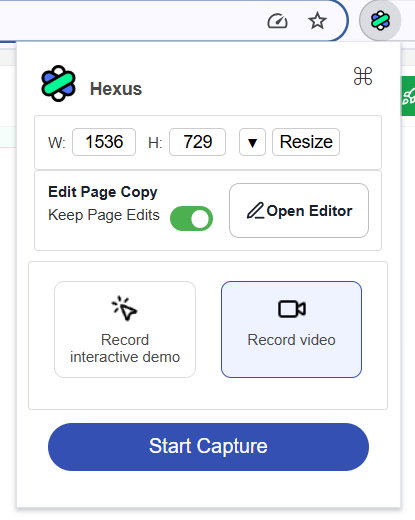 * Click the Hexus extension icon in your Chrome toolbar.
* Select **Record Video** from the options.
* Choose your recording area:
* **Current Tab** – Records only the tab you’re viewing.
* **Window** – Records the entire browser window.
* **Entire Screen** – Records everything on your screen, including other apps.
* After selecting your option, recording starts automatically after a short countdown.
* When finished, click **Stop Recording** in the Chrome extension.
* Click the Hexus extension icon in your Chrome toolbar.
* Select **Record Video** from the options.
* Choose your recording area:
* **Current Tab** – Records only the tab you’re viewing.
* **Window** – Records the entire browser window.
* **Entire Screen** – Records everything on your screen, including other apps.
* After selecting your option, recording starts automatically after a short countdown.
* When finished, click **Stop Recording** in the Chrome extension.
.png?fit=max&auto=format&n=WNzO3pj1J3sBet3O&q=85&s=6f74fbe35cac2775e3e94b1e3690a9aa "Image(93) Pn") ### **After recording**
Once the recording is stopped:
* The video is saved and processed in your dashboard.
* You can now click on the "Edit" button
### **After recording**
Once the recording is stopped:
* The video is saved and processed in your dashboard.
* You can now click on the "Edit" button
.png?fit=max&auto=format&n=WNzO3pj1J3sBet3O&q=85&s=532e3d3746b602e5406545af424a44dc) * Now you can choose to [customise your video](https://support.hexus.ai/getting-started/editing-your-tour), add [AI voiceovers](https://support.hexus.ai/advanced-editing/AI-Voiceovers),[ AI Avatars](https://support.hexus.ai/advanced-editing/AI-Avatar) and more from our editor!
* You can preview, [publish and share](https://support.hexus.ai/getting-started/publishing-and-sharing) the video directly.
### **Best practices**
* For videos longer than 2 minutes, the Chrome Extension automatically records in **2-minute chunks** to ensure performance and reliability.
* **Close unnecessary tabs** to avoid distractions and ensure smooth performance.
* **Test before sharing** to confirm audio, video quality, and what’s visible.
* **Use a headset** if recording with voice for clearer audio.
You can record a single browser tab, an entire browser window, or your full screen. This includes other open apps or windows if you choose the “Entire Screen” option.
You can record videos up to **15 minutes** long. Videos longer than 2 minutes are automatically saved in **2-minute chunks** to ensure smooth performance and upload.
Click the Hexus Chrome Extension icon, select **“Record a video”**, choose what to record, and the recording will begin after a short countdown. Once you’re done, click **“Stop Recording”** from the Chrome Extension toolbar.
The Video Recording mode helps you clearly demonstrate workflows, product features, or on-screen processes without needing complex tools. It’s perfect for:
* **Product demos** and **tutorials**
* **Customer support** or **training material**
* Quickly sharing **visual feedback** or **bug reports**
* Creating **personalized walkthroughs** for users or clients
By recording your screen directly from the Chrome Extension, you can save time, maintain clarity, and instantly share content—all from your browser, with no extra software needed.
The video recording mode is available starting from the 'Starter' plan and is included in all higher-tier plans as well.
* Now you can choose to [customise your video](https://support.hexus.ai/getting-started/editing-your-tour), add [AI voiceovers](https://support.hexus.ai/advanced-editing/AI-Voiceovers),[ AI Avatars](https://support.hexus.ai/advanced-editing/AI-Avatar) and more from our editor!
* You can preview, [publish and share](https://support.hexus.ai/getting-started/publishing-and-sharing) the video directly.
### **Best practices**
* For videos longer than 2 minutes, the Chrome Extension automatically records in **2-minute chunks** to ensure performance and reliability.
* **Close unnecessary tabs** to avoid distractions and ensure smooth performance.
* **Test before sharing** to confirm audio, video quality, and what’s visible.
* **Use a headset** if recording with voice for clearer audio.
You can record a single browser tab, an entire browser window, or your full screen. This includes other open apps or windows if you choose the “Entire Screen” option.
You can record videos up to **15 minutes** long. Videos longer than 2 minutes are automatically saved in **2-minute chunks** to ensure smooth performance and upload.
Click the Hexus Chrome Extension icon, select **“Record a video”**, choose what to record, and the recording will begin after a short countdown. Once you’re done, click **“Stop Recording”** from the Chrome Extension toolbar.
The Video Recording mode helps you clearly demonstrate workflows, product features, or on-screen processes without needing complex tools. It’s perfect for:
* **Product demos** and **tutorials**
* **Customer support** or **training material**
* Quickly sharing **visual feedback** or **bug reports**
* Creating **personalized walkthroughs** for users or clients
By recording your screen directly from the Chrome Extension, you can save time, maintain clarity, and instantly share content—all from your browser, with no extra software needed.
The video recording mode is available starting from the 'Starter' plan and is included in all higher-tier plans as well.