> ## Documentation Index
> Fetch the complete documentation index at: https://support.hexus.ai/llms.txt
> Use this file to discover all available pages before exploring further.
# Loom Video Imports on Hexus
> Import Loom videos into Hexus and use them as standalone video steps or convert them into fully interactive Hexus Flows
You can easily import Loom videos into Hexus to create interactive product demos, onboarding guides, or training walkthroughs. By using the **Convert Videos and Images into Flows** feature, Hexus gives you the flexibility to either embed Loom videos directly or convert them into fully interactive Flows using AI.
**Hexus Tip:** Use Loom imports to repurpose existing content; especially for onboarding, support, or product tutorials without having to re-record anything.
### Using Loom Videos in **Video to Hexus**
If you’re using the Video to Hexus feature:
1. Visit [**app.usehexus.com**](http://app.usehexus.com)
2. Go to **Convert Videos and Images into Flows** in your dashboard
.png?fit=max&auto=format&n=lQVOeQaQm7Wb8MUH&q=85&s=761fd601f8ba5586ac09e626d9d44c62) 3. Select **Video Link** and paste your Loom video URL
3. Select **Video Link** and paste your Loom video URL
.png?fit=max&auto=format&n=lQVOeQaQm7Wb8MUH&q=85&s=d2c7247201ed9a972b985d6476f5983e) 4 . Click **Continue as Video** or **Convert to Hexus Flow**
Converting into a Hexus Flow takes a few minutes. For quicker results, choose \*\*Continue as Video \*\*and simply add your script.
4 . Click **Continue as Video** or **Convert to Hexus Flow**
Converting into a Hexus Flow takes a few minutes. For quicker results, choose \*\*Continue as Video \*\*and simply add your script.
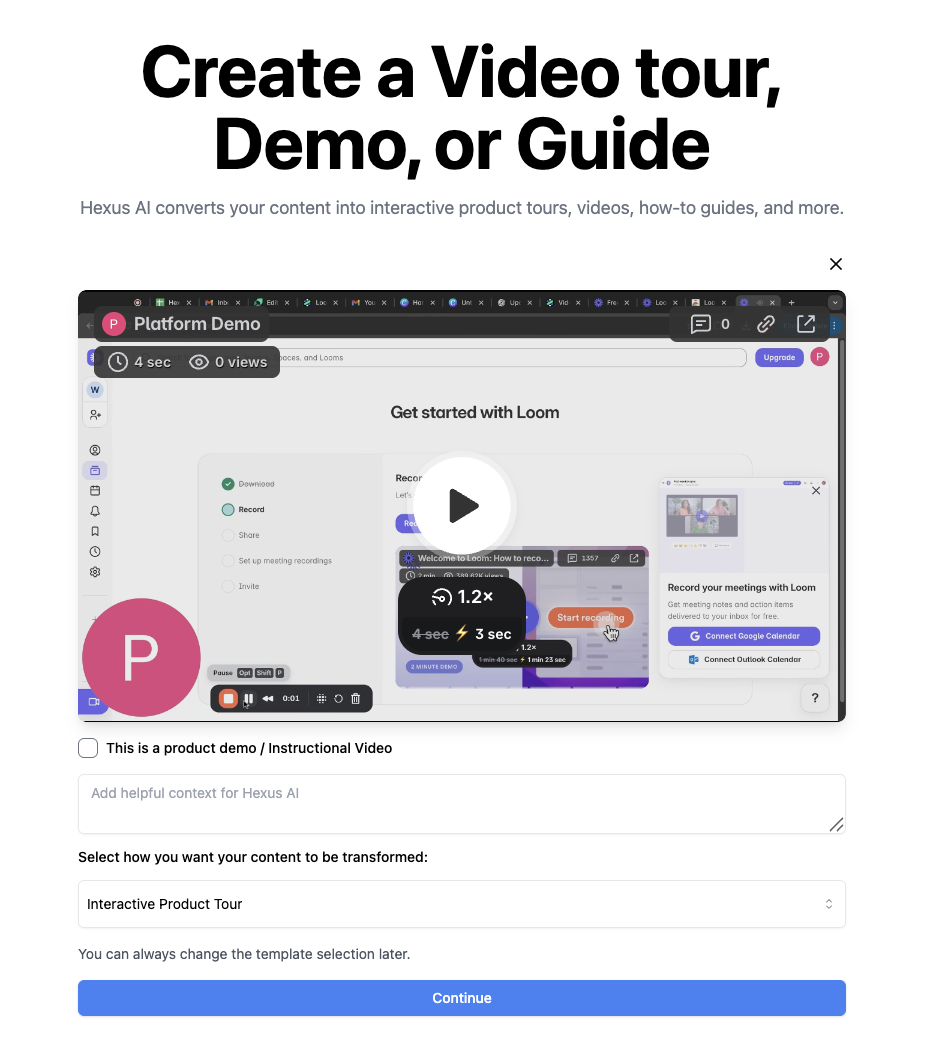 5\. Your flow will appear in your dashboard within a few minutes. We’ll send you an email or notification once it’s ready.
This feature is useful when you want to turn a long-form Loom explanation into an interactive experience with clickable elements and step-by-step guidance.
Here's an interactive demo:
5\. Your flow will appear in your dashboard within a few minutes. We’ll send you an email or notification once it’s ready.
This feature is useful when you want to turn a long-form Loom explanation into an interactive experience with clickable elements and step-by-step guidance.
Here's an interactive demo:
### **Ways to use Loom videos in Hexus**
You can use imported Loom videos in two ways:
#### **1. As a video step**
Embed the Loom video as a single step within an existing Hexus Flow — perfect for walkthroughs, feature callouts, or support explanations.
#### **2. Convert to a full Hexus Flow**
Let **Hexus AI** analyze the Loom video and automatically break it into interactive steps. You can then:
* Add hotspots, captions, and CTAs
* Split the content into scenes
* Customize the experience like any other Hexus Flow