> ## Documentation Index
> Fetch the complete documentation index at: https://support.hexus.ai/llms.txt
> Use this file to discover all available pages before exploring further.
# Editing Your Tour
> Learn how to customize your product tour
**Hexus Tip:** Configure your brand style, voice and tone in your settings. Doing so will update the default appearance of your tours to maintain consistency. Learn more here.
## Design, styles & image editing for Hexus tours
You can customize Hexus tours per your brand colors and styles. You can also crop, annotate, blur out sensitive info all in our editor. Learn more about our editing features in the tour below.
## Editing captions in your Hexus tour
Automatically generate captions and titles for your tours with our AI feature, or learn how to edit captions in the tour below.
## Add Interactive Text Input to flows
Enable viewers to type responses directly within your flow. This feature allows you to add interactive text input fields that capture user input and guide them to the next step based on their response perfect for forms, feedback, onboarding, or personalized experiences.
## Recording voice, camera and AI Avatar & voiceover options
Learn about our various AI generated or manual voiceover and camera recording features below. We also support adding background music in the Player Settings tab. To add pauses in your text-to-speech, you can add this syntax: ``
Make your tutorials more interactive with Hexus [AI Avatar](https://support.hexus.ai/advanced-editing/AI-Avatar) and [AI Voiceover](https://support.hexus.ai/advanced-editing/AI-Voiceovers) feature. With this you can add a virtual presenter to your content, making it more dynamic and professional.
## Recording Background Audio or Video for a Tour
Available on **Enterprise** Plan
Hexus supports recording one continuous video or audio clip across the entire tour flow, making it easier to maintain consistency and streamline narration.
**Where to Find It**
This feature is currently **only available in the Product Demo Video template**. To access the recording tools:
1. Open your tour in the Product Demo Video template.
2. Navigate to the **Media Toolbar**.
3. Click on the **Audio** or **Video** tab depending on your desired recording type.
**How It Works**
**Keeping screens in sync**
To keep the screens in sync with your voice or video recording - click on the steps timeline at the bottom of your screen to change steps while recording
* You can record **one continuous video or audio** clip that plays seamlessly across the full tour.
* This eliminates the need to record separate clips for each step.
* Ideal for product walkthroughs, voiceover demos, or end-to-end guided tours.
> **Note:** This feature is exclusive to Enterprise plan users. If you're interested in upgrading, please contact your Hexus account manager.
## Adding a Step to Flow
In the tour builder, you can add a step at any point in your flow by clicking the `Add Step` button. This allows you to enrich your tour with various types of content or interactivity, such as images, videos, forms, and more.
Each step type helps improve user engagement and guides your viewers through a more compelling and interactive experience.
Here, you can import steps from other Hexus flows, upload your media, record your desktop, or record from our Chrome extension.
**1. Upload Images** - Add static visuals by uploading PNG, JPG, or GIF files from your computer. These can be used for showcasing product screenshots, diagrams, or branded graphics.
**2. Upload Videos** - Enhance your step with pre-recorded videos (MP4, MOV, etc.). Ideal for demo reels, walkthroughs, or testimonial clips.
**3. Copy Steps from Existing Flows** - Reuse steps from another flow. This saves time when you want to maintain consistency across multiple tours or reuse onboarding sections.
**4. Add a Title Slide** - Introduce a section or provide context using a clean title slide. Include a headline, subheading, and optional image to create a cover or transition slide.
**5. Add a Form Slide** - Collect input from your viewers directly within the tour. Use this to gather feedback, signups, survey data, or email addresses.
**6. Record Screen or Camera as Video** - Capture your screen or webcam in real-time. This is perfect for personalized messages, live product demos, or troubleshooting guides.
**7. Capture a New Image Using Chrome Extension** - Use the Hexus Chrome Extension to grab screenshots of your app or website instantly and embed them directly into a step.
**8. Add an AI Avatar** - Personalize your flow with a lifelike AI presenter who can deliver scripted or dynamic content. Coming soon!
**9. Import Stock Images** - Search and insert royalty-free images from a built-in stock photo library to enhance visual appeal.
## Replacing a Step in a Flow
In the Hexus tour builder, you can replace a step at any point in your flow by following these steps:
* Click on the step that you want to change.
* Click on the gear icon.
* In the menu that appears, you will see three options:
* **Duplicate step**
* **Replace step**
* **Delete step**
* Click **Replace step**.
* On the main scene, you will be presented with six options to replace the step:
1. **Upload media** – Upload JPG, PNG, GIF, MP4, MOV, or WEBM files (Max 10MB each).
2. **Add an AI avatar** – Add an AI-generated avatar to your step.
3. **Copy step from other Hexus flows** – Use a step from a different flow.
4. **Record video** – Record your screen or camera directly.
5. **Replace with chrome extension** – Use the Hexus Chrome extension to capture content.
6. **Add image from Unsplash** – Search and add a stock image from Unsplash.
## Adding / Updating a Title Slide
You can add or update a title slide in your flow by following these steps:
1. Go to your desired flow.
2. Click on **Add step**.
3. In the window that appears, click on **Add Title Slide or Form**.
4. Click on **Create a page with a title, call-to-action, or external forms**.
5. Enter your **title** and **description**.
6. Click on **Add custom CTA** to add a call-to-action.
7. Click on the **Save** button.
## Auto-add Intro & Outro Steps to all Hexus Flows
To automatically add intro and outro steps to Hexus recorded flows, simply follow these steps:
1. Click on your **profile icon** in the left navigation bar
2. Select **Profile Settings** from the dropdown menu
3. Navigate to the **Customization** tab at the top of the settings page
4. Toggle on the **Intro Step** and **Outro Step** options to enable adding intro and outro steps respectively
5. **Save** your profile settings
## Creating Intro & Outro Templates
Availalabe on **Enterprise** plan and **Growth** plan as add-on (Contact us)
You can create an intro and outro templates to quickly add to your flows by following these steps:
1. Click on **Intro/Outro** on the right side panel on Hexus flow edit page.
2. Click on the **Create New** button.
3. In the template modal, you can update the background *(color, gradient, image, or video)*, blur, adjust alignment, and add a heading, description, and CTA.
4. Click on the **Save** button.
5. The created template can be added as an **Intro** or **Outro** step to the Hexus flow.
6. You can edit the **Intro** and **Outro** templates any time.
## Combining Steps in the How-to Guide
You can combine multiple steps into one in the how-to guide template to avoid having too many needless steps in the guide.
## Adding Animated Text
To add animated text for a limited duration on your Hexus flows you can use our **Animated Text** feature under **Annotations** settings.
1. Navigate to the **Edit** tab for the Hexus flow you want to edit and select the **Annotations** tab from the toolbar on the right side of your screen
2. Click on **Add Animated Text** from the annotations menu
3. You'll see placeholder text appear (typically "Hello World")
4. Click directly on this text to edit and type in your message
5. Use the annotations panel to adjust \*\*font size, color, alignment \*\*&\*\*duration \*\* for the animated text.
6. Finally, position the animated text in the appropriate position on the step
7. Preview your changes before publishing
## Player and Step settings
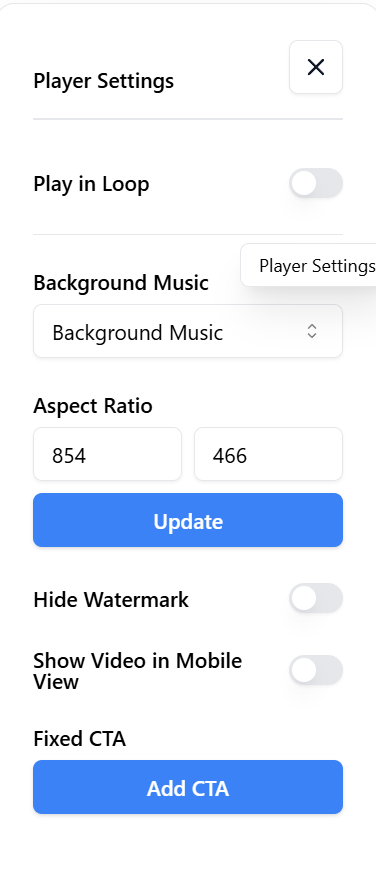
Additionally, we support customizing the player under **Player Settings** in the toolbar for accessibility, responsiveness, brand customization and more:
1. **Closed Captions:** This is available on the Growth & Enterprise plan. You can generate a transcript if your flow has audio.
2. **Play in loop:** By default, the interactive tour or video will not play in a loop. To enable autoplaying in a loop, turn the toggle on in the step settings toolbar.
3. **Background Music:** You can select one of our preset background music options. Enterprise plans support adding your own background music.
4. **Aspect ratio:** You can update the aspect ratio for your flows by adjusting the width and height, and clicking Update.
5. **Watermark:** Hiding watermark is only available on our paid plans. Enterprise plan holders can add your own watermark.
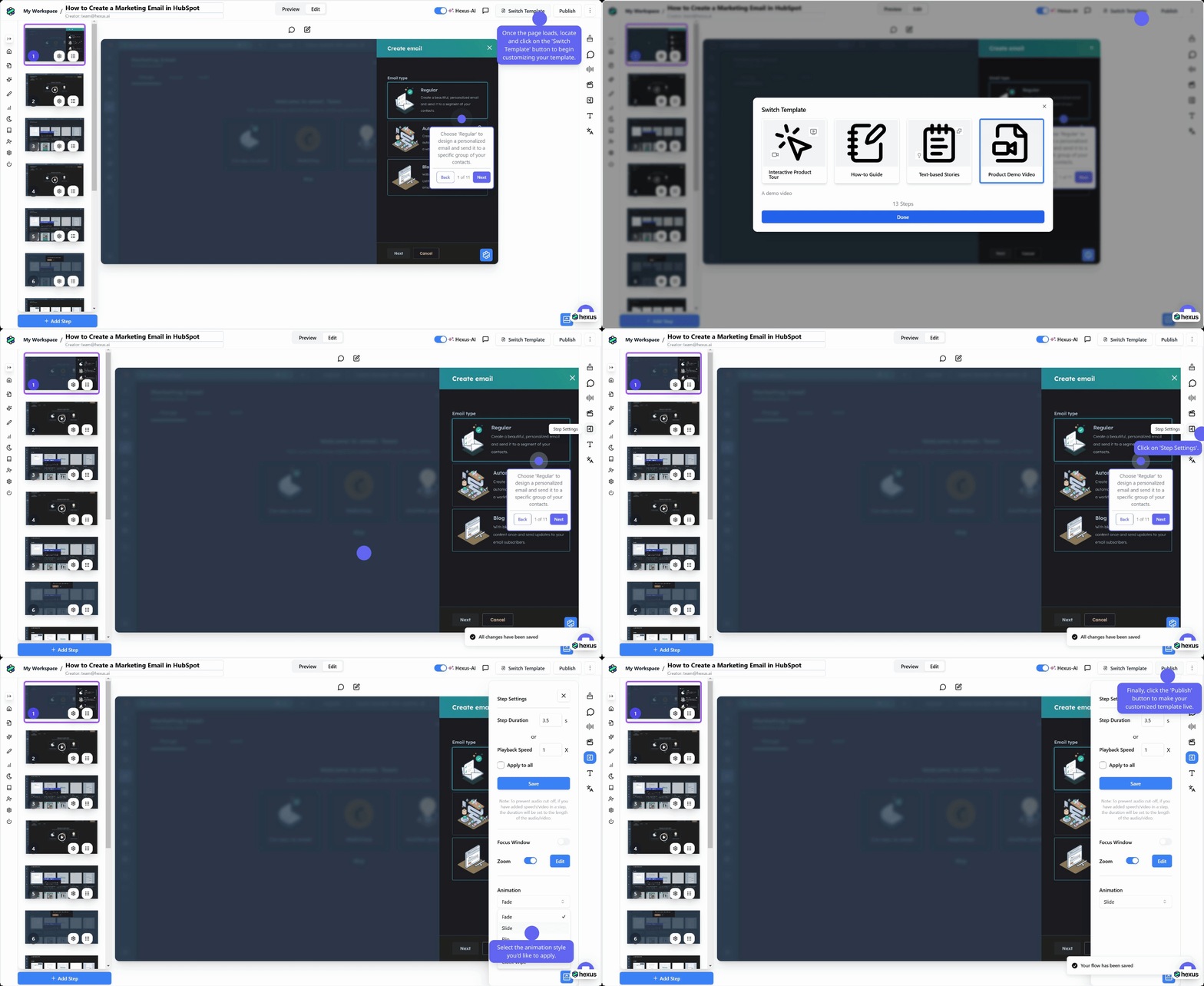
6. **Step settings:** You can control the duration of the step or playback speed under Step settings.
7. **Product Demo Video Animation:** You can customize how your product video animates in the Step Settings by changing the animation type.
 1. **Mobile settings:** You can toggle the 'Show in Mobile' option on in Player settings for your flows so your customers can view your tours on mobiles seamlessly as well. The flow will render as a video instead of an interactive tour.
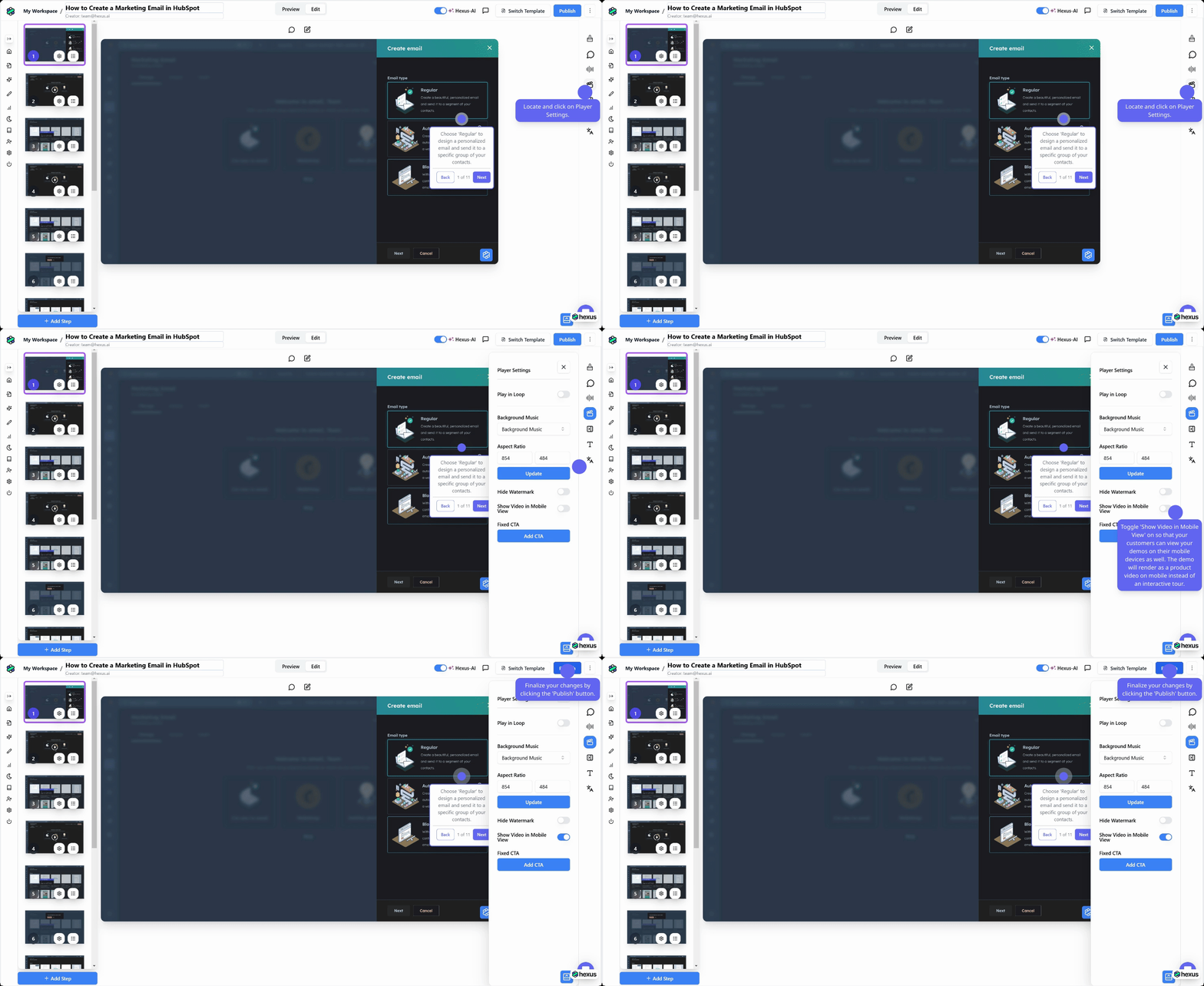 1. **Fixed CTA:** With this option, you can add a CTA on every step of the demo at a fixed location. You can use this to drive conversions for example "book a demo" or "sign up" or "view help center".
 ## Zoom In and Out
Adding **Zoom** helps highlight elements in the spotlight clearly, ensuring a smooth, clean, and aesthetic product tour for your customers. Here's how you can do it:
1. Open your desired product tour and click **Edit** to begin making changes.
2. On the right-hand side, click **Step Settings**.
3. In the settings window, switch the toggle to **On** to enable Zoom.
4. Use the **Zoom In** button to focus on this slide, or the **Zoom Out** button to return to the default view.
5. Click **Save** to complete the process.
6. *(Optional)* Click **Auto Zoom** to automatically apply Zoom to all steps in your product tour.
Here's an interactive demo👇
## Zoom In and Out
Adding **Zoom** helps highlight elements in the spotlight clearly, ensuring a smooth, clean, and aesthetic product tour for your customers. Here's how you can do it:
1. Open your desired product tour and click **Edit** to begin making changes.
2. On the right-hand side, click **Step Settings**.
3. In the settings window, switch the toggle to **On** to enable Zoom.
4. Use the **Zoom In** button to focus on this slide, or the **Zoom Out** button to return to the default view.
5. Click **Save** to complete the process.
6. *(Optional)* Click **Auto Zoom** to automatically apply Zoom to all steps in your product tour.
Here's an interactive demo👇
## Focus Windows
Focus windows are helpful when you want the users to focus on just one part of the screen. No distractions from any other part of the video, it conveys the message with utmost clarity. Here's how you can add them:
1. Go to your desired product tour, click on the 'Edit' button to begin making changes.
2. On the right hand side, you will find 'Step Settings'. Click on it to proceed.
3. Once the window opens, switch the toggle to 'on' to enable the Focus Window
4. You can now place the focus window anywhere on the screen
5. Complete this by clicking on the save button
Here's an interactive demo 👇