> ## Documentation Index
> Fetch the complete documentation index at: https://support.hexus.ai/llms.txt
> Use this file to discover all available pages before exploring further.
# Collaboration and Organization
> You can invite team members to your workspace and give them role based access if you are on a team plan.
## Giving team members role-based access
## Sharing your flows with your workspace members
## Commenting and Reviewing Your flows
You can manage your product creation workflows seamlessly from Hexus. Add comments and reviews on Hexus flows and manage access settings right from our platform.
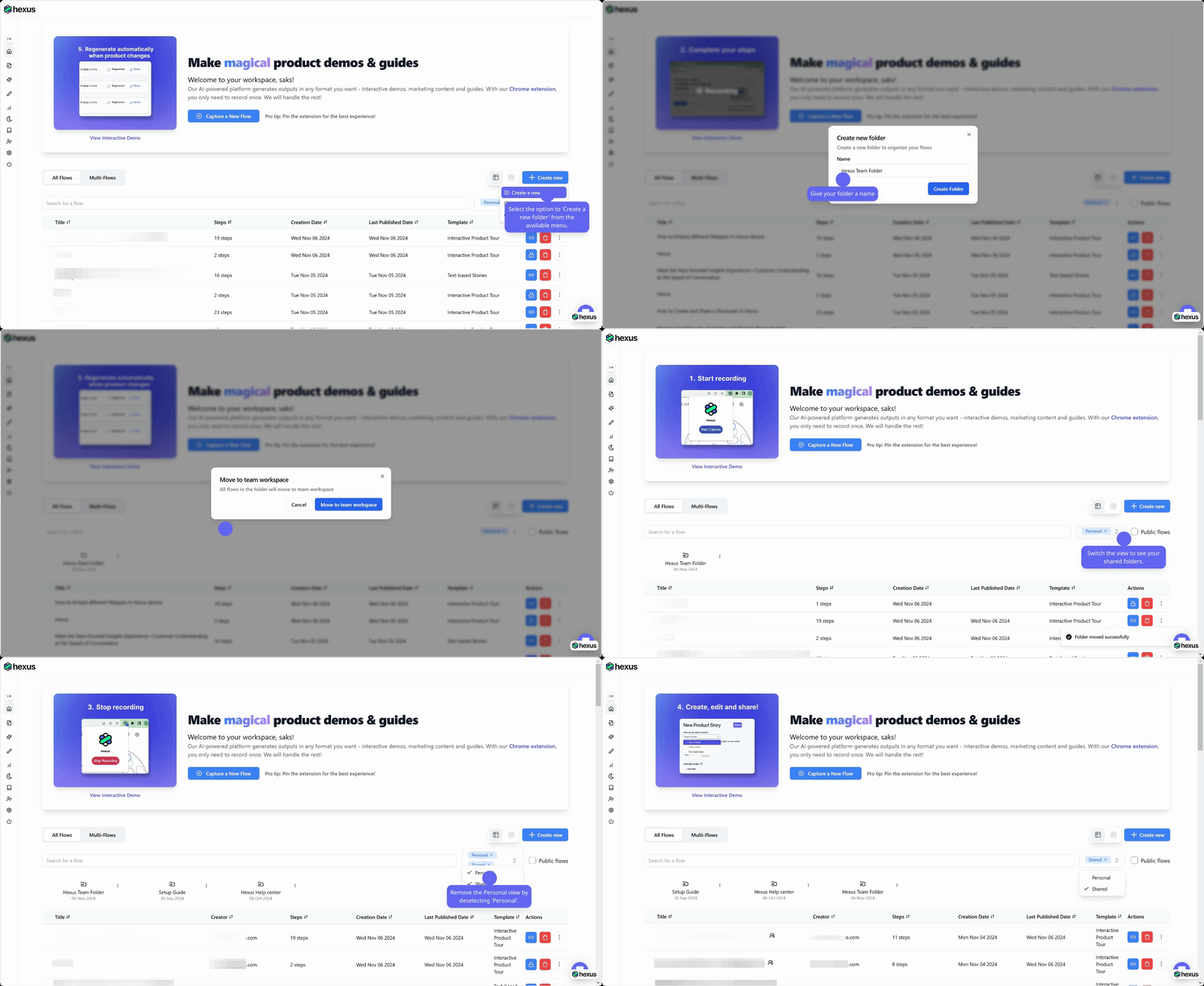
## Creating Shared Folders
 Ready to grow and collaborate with your team?
Adding members to your Hexus workspace is a straightforward process that scales with your needs. Whether you're on the Starter, Growth, or Enterprise Plan, you can easily expand your team and collaborate effectively. Head to your workspace settings now to start inviting new team members.
## Frequently Asked Questions
Adding new members to your Hexus workspace takes just a few clicks. Start by visiting [app.usehexus.com/profile](https://app.usehexus.com/profile). From there, look for the 'Invite Team Members' button in the left navigation panel. Simply click on the '+ Add Member' button, enter your new team member's email address, and select their role from the dropdown menu.
The process is seamless after you've sent the invitation. Your new team member will automatically receive an email invitation to join your workspace. They can follow the instructions in the email to set up their account and gain access to your Hexus workspace.
The specific features can vary based on your specific plan. For a brief overview here is a select list of features that enables team collaboration on Hexus:
**Starter Plan:**
* Share your Hexus flows with team workspace
* Keep your shared demos upto date
* Send demos for reviews with your team members
**Growth & Enterprise Plan:**
* In addition to collaboration features available on starter plan, our growth and enterprise plan customers get access to advanced features such as comments and folders.
The Starter Plan offers flexible pricing options for additional members. You can choose between monthly and yearly subscription rates. To view the pricing for your plan, navigate to the billing tab on Hexus: [https://app.usehexus.com/profile?tab=billing](https://app.usehexus.com/profile?tab=billing)
We use prorated charging based on when members join during your billing cycle. For instance, if your billing cycle begins April 1st and you add a member on April 15th, you'll only be charged for the 15 days that member was active in your workspace that month.
Our Starter plan, starts off with 1 member on the workspace and allows adding additional members for a fee.
The Growth Plan comes with generous team capacity built-in. You'll get up to 5 members included by default in your subscription. If you need to add more team members beyond these 5 seats, additional member slots are available for purchase separately.
Enterprise Plan customers enjoy maximum flexibility with workspace members. You can add team members up to your workspace limit, and pricing is customized to fit your organization's specific needs. Contact our team to discuss custom pricing arrangements that work best for your enterprise
Ready to grow and collaborate with your team?
Adding members to your Hexus workspace is a straightforward process that scales with your needs. Whether you're on the Starter, Growth, or Enterprise Plan, you can easily expand your team and collaborate effectively. Head to your workspace settings now to start inviting new team members.
## Frequently Asked Questions
Adding new members to your Hexus workspace takes just a few clicks. Start by visiting [app.usehexus.com/profile](https://app.usehexus.com/profile). From there, look for the 'Invite Team Members' button in the left navigation panel. Simply click on the '+ Add Member' button, enter your new team member's email address, and select their role from the dropdown menu.
The process is seamless after you've sent the invitation. Your new team member will automatically receive an email invitation to join your workspace. They can follow the instructions in the email to set up their account and gain access to your Hexus workspace.
The specific features can vary based on your specific plan. For a brief overview here is a select list of features that enables team collaboration on Hexus:
**Starter Plan:**
* Share your Hexus flows with team workspace
* Keep your shared demos upto date
* Send demos for reviews with your team members
**Growth & Enterprise Plan:**
* In addition to collaboration features available on starter plan, our growth and enterprise plan customers get access to advanced features such as comments and folders.
The Starter Plan offers flexible pricing options for additional members. You can choose between monthly and yearly subscription rates. To view the pricing for your plan, navigate to the billing tab on Hexus: [https://app.usehexus.com/profile?tab=billing](https://app.usehexus.com/profile?tab=billing)
We use prorated charging based on when members join during your billing cycle. For instance, if your billing cycle begins April 1st and you add a member on April 15th, you'll only be charged for the 15 days that member was active in your workspace that month.
Our Starter plan, starts off with 1 member on the workspace and allows adding additional members for a fee.
The Growth Plan comes with generous team capacity built-in. You'll get up to 5 members included by default in your subscription. If you need to add more team members beyond these 5 seats, additional member slots are available for purchase separately.
Enterprise Plan customers enjoy maximum flexibility with workspace members. You can add team members up to your workspace limit, and pricing is customized to fit your organization's specific needs. Contact our team to discuss custom pricing arrangements that work best for your enterprise