> ## Documentation Index
> Fetch the complete documentation index at: https://support.hexus.ai/llms.txt
> Use this file to discover all available pages before exploring further.
# Refresh
> Hexus offers several ways for content maintenance options when your UI changes. Here are the options.
## Replacing One Screen in a Tour
**To replace a screen in a tour:**
1. Click on the "Replace" button in the left menu. This will open the URL to that screen and the Chrome extension.
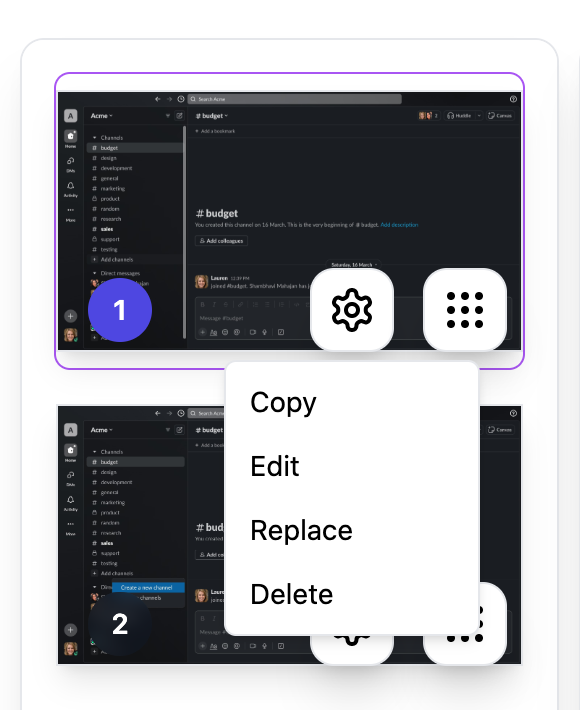 2. You can recapture the screen with the updated UI or replace it by capturing any other screen.
**Alternatively, you can:**
1. Delete the screen from the video.
2. Add a new step.
3. Upload a new screen PNG or JPG.
## Replacing a Tour Manually
**To rerecord a published tour:**
1. Go to the "Template Settings" menu.
2. Click on "Refresh (Beta)".
3. Select "Re-record". This will open the URL to the beginning of the screen and the Chrome extension.
2. You can recapture the screen with the updated UI or replace it by capturing any other screen.
**Alternatively, you can:**
1. Delete the screen from the video.
2. Add a new step.
3. Upload a new screen PNG or JPG.
## Replacing a Tour Manually
**To rerecord a published tour:**
1. Go to the "Template Settings" menu.
2. Click on "Refresh (Beta)".
3. Select "Re-record". This will open the URL to the beginning of the screen and the Chrome extension.
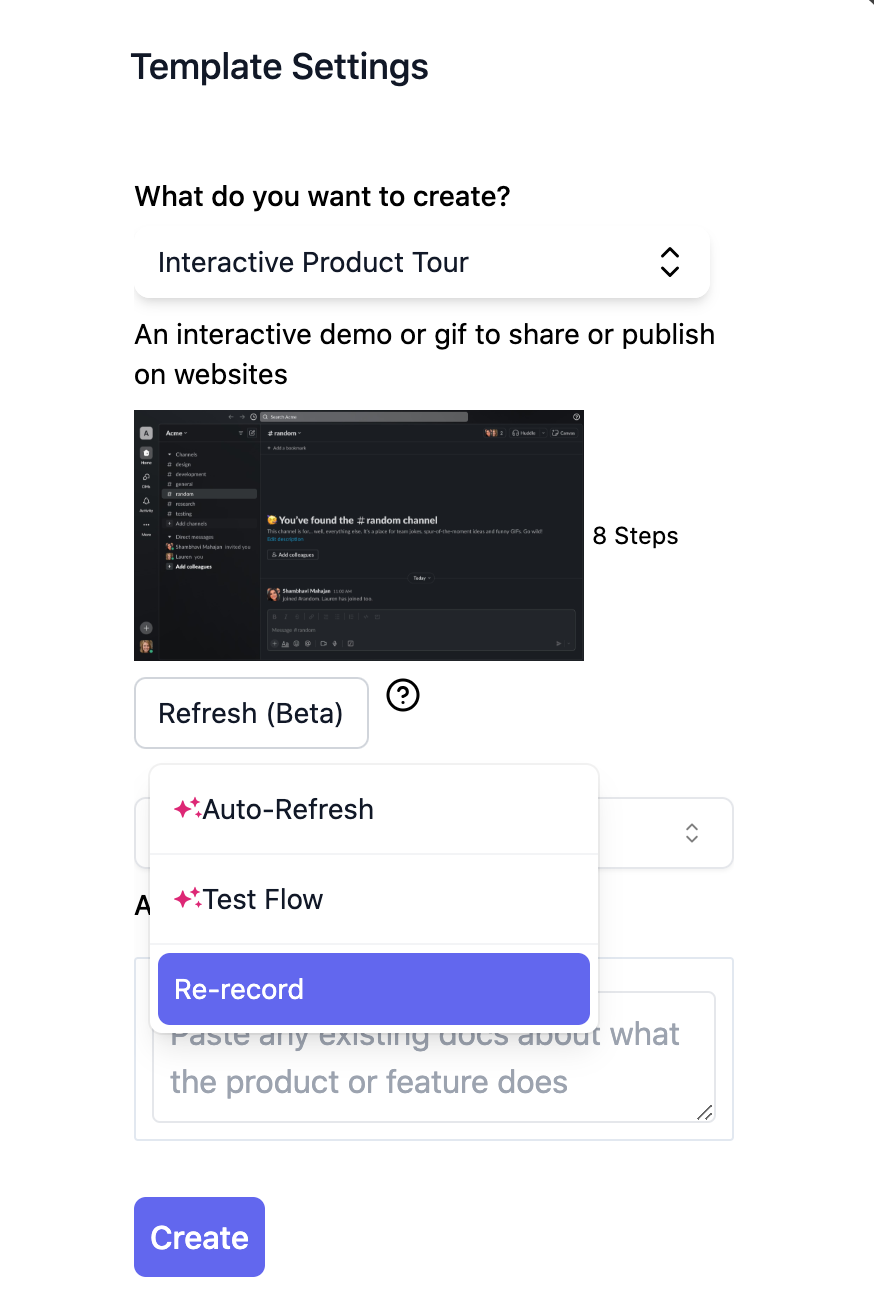 4. You can recapture the tour with the updated UI or replace it by capturing any other flow.
## Replacing a Tour Automatically
**Tip:** Run a test first to check if the steps can be auto-refreshed.
To automatically rerecord a published tour:
1. Go to the "Template Settings" menu.
2. Click on "Refresh".
3. Select "Auto-Refresh". This will open the URL to the beginning of the screen, and our bot will auto-capture the same flow with the updated UI.
Watch the tour below to see this in action.
4. You can recapture the tour with the updated UI or replace it by capturing any other flow.
## Replacing a Tour Automatically
**Tip:** Run a test first to check if the steps can be auto-refreshed.
To automatically rerecord a published tour:
1. Go to the "Template Settings" menu.
2. Click on "Refresh".
3. Select "Auto-Refresh". This will open the URL to the beginning of the screen, and our bot will auto-capture the same flow with the updated UI.
Watch the tour below to see this in action.
## Reviewing your published flows
There are a few ways you can review published flows.
### a. Testing a flow
You can run a test to check if the steps in the published flow are still valid with the latest UI. Our bot opens a new tab in your browser and runs through the same steps.
**Note:** You must be in the same logged in / logged out state as the original capture to let the bot run the test.
To run a test,
1. Go to ‘Template Settings’
2. Select ‘Refresh (Beta)’
3. Click on ‘Test Flow’
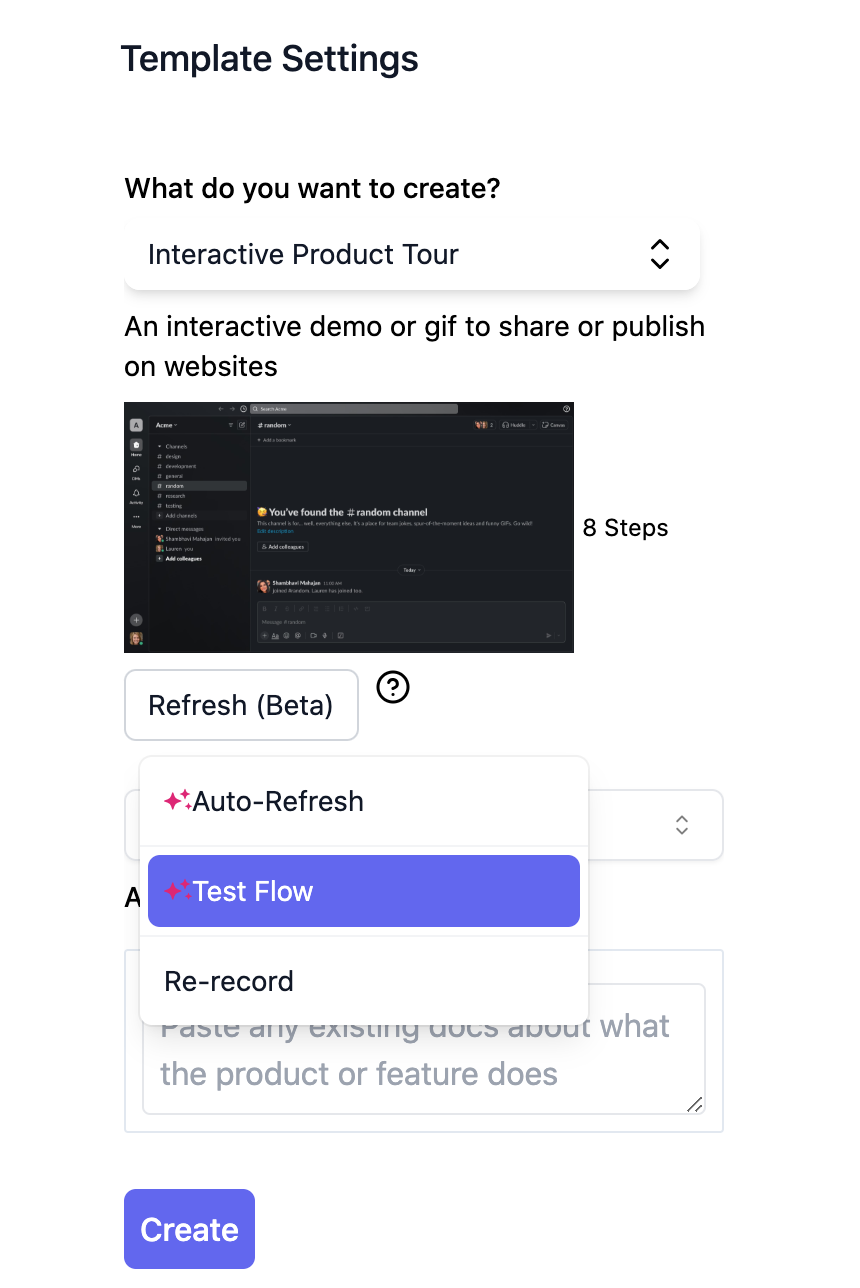 ✅ If the test is a success, you will see a success message like this:
 ❌ If the bot is unable to proceed after a certain step due to a change in the UI, then you will see a pop up as shown below in the same tab:
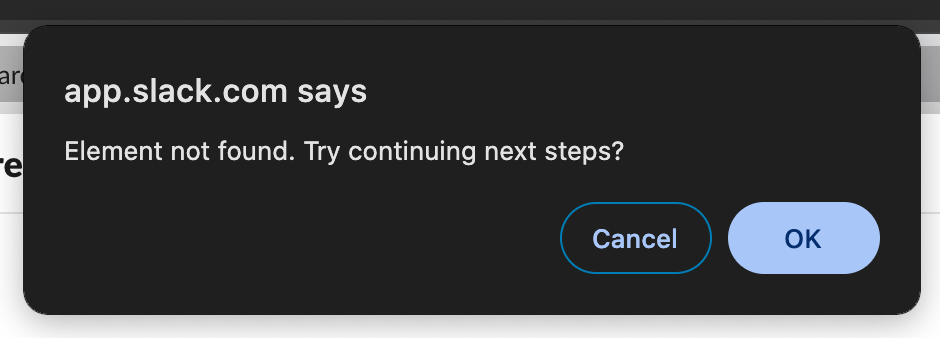 Additionally, you will see this message in the ‘Template Settings’ modal.
 ### b. Search for a flow
Hexus indexes all your flow titles, captions, URLs and UI elements so that you can search for a particular flow by the elements that were captured in it. You can start a search in your dashboard, and check the box to search across the entire catalog.
### b. Search for a flow
Hexus indexes all your flow titles, captions, URLs and UI elements so that you can search for a particular flow by the elements that were captured in it. You can start a search in your dashboard, and check the box to search across the entire catalog.
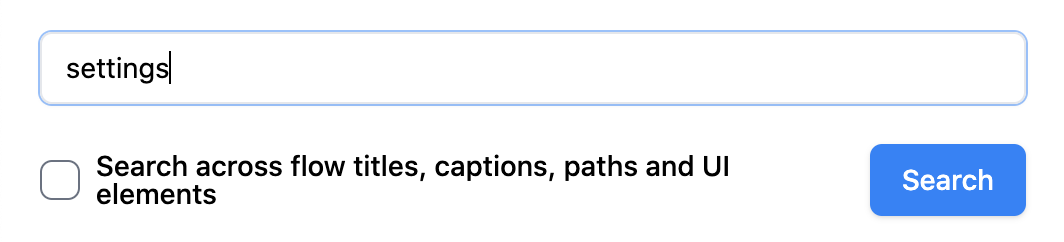 1. Search by URL: If you need to update a screen that appears across many flows, you can simply search by URL.
2. Search by UI element: If you need to update flows that contain a specific CTA, you can simply search by the name of the CTA.
3. Search by flow title or caption: You can find a flow by searching for the text in the title or in any of the captions on the hotspots or text-to-speech.
### c. Notifications
You can set up in-app notifications or email notifications as a reminder to manually review your flows at your desired frequency. For example, if your team has a major release every quarter, you can set up quarterly notifications to review your flows and check if they are up to date. Here’s how you can set up notifications:
1. Search by URL: If you need to update a screen that appears across many flows, you can simply search by URL.
2. Search by UI element: If you need to update flows that contain a specific CTA, you can simply search by the name of the CTA.
3. Search by flow title or caption: You can find a flow by searching for the text in the title or in any of the captions on the hotspots or text-to-speech.
### c. Notifications
You can set up in-app notifications or email notifications as a reminder to manually review your flows at your desired frequency. For example, if your team has a major release every quarter, you can set up quarterly notifications to review your flows and check if they are up to date. Here’s how you can set up notifications:
## FAQs
This feature is coming soon. You will be able to create a collection and apply the auto refresh feature in bulk. Stay tuned for updates [here](/roadmap/q3-2024-roadmap).
If our bot cannot find an element due to a major UI change, it will prompt you to intervene. At that point, you can manually update the tour.
The auto feature can handle any style changes, color changes, and smaller changes in target elements. The more you use Hexus, the more our bot learns about your product and will be able to handle bigger UI changes.
We have workflows to review and flag stale content. Contact us at [team@hexus.ai](mailto:team@hexus.ai) to enable this feature.