> ## Documentation Index
> Fetch the complete documentation index at: https://support.hexus.ai/llms.txt
> Use this file to discover all available pages before exploring further.
# Personalization Capabilities
> Here’s a quick guide on how you can make your interactive product tours and demo centers even more tailored and engaging for your audience.
**Hexus Tip:** Personalize your onboarding emails, newsletters, drip campaigns with name and email variables.
## Dynamic Personalization with Name & Email Variables
You can add custom variables to a product tour to personalize it for your viewers. Variables are placeholders you can define that turn the text within your product tour into personalized values. You can define variables in titles and captions.
Here’s how:
* Insert a placeholder like `{name}` in your flow captions, titles, and other text elements.
* When sharing or embedding videos, append `?name=Kate` to the URL to automatically populate the name variable with “Kate”. View an example:
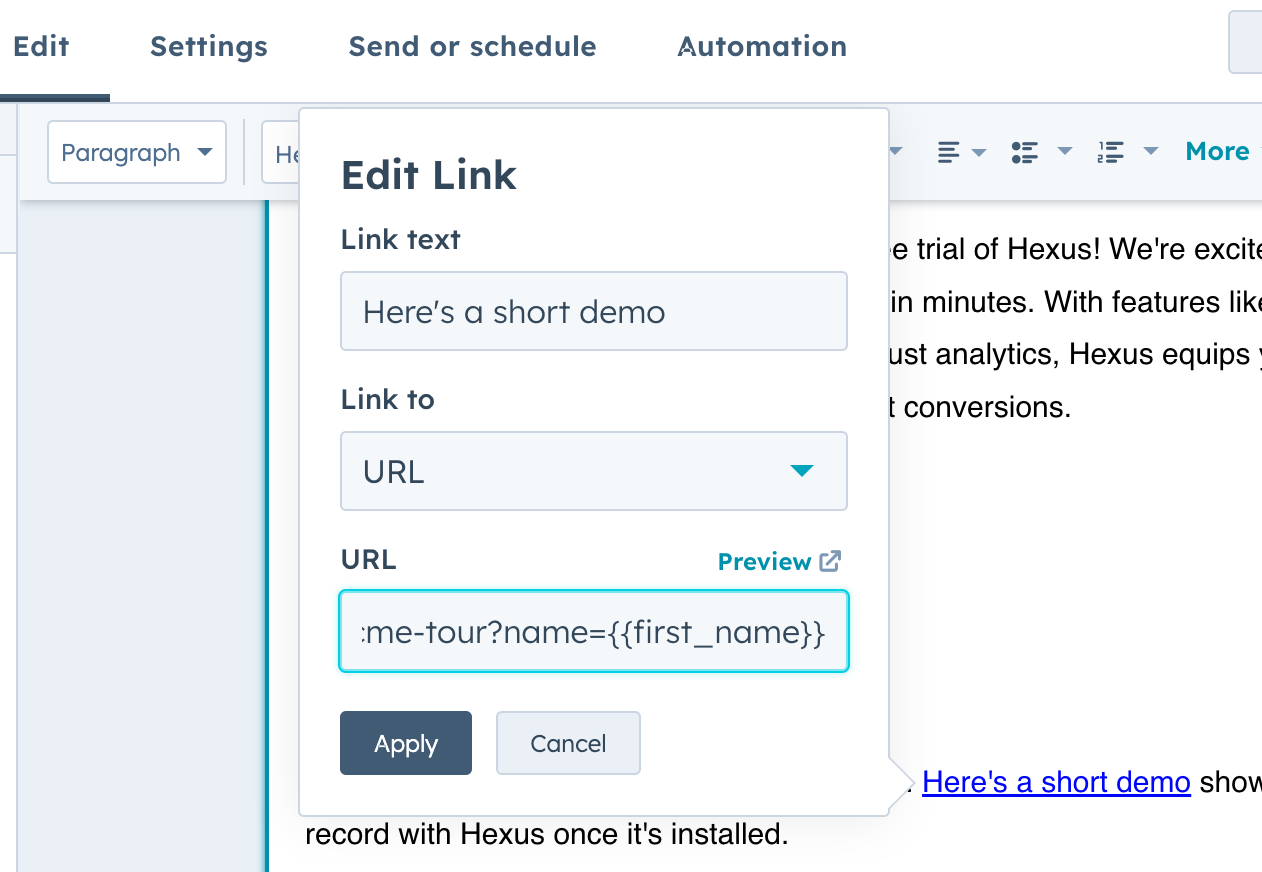
[`https://app.usehexus.com/flow/hubspot-tour?name=John`](https://app.usehexus.com/flow/hubspot-tour?name=John)
* **Using personalization in your email campaigns:**
1. Personalized prospecting in your Apollo or cold outreach campaigns
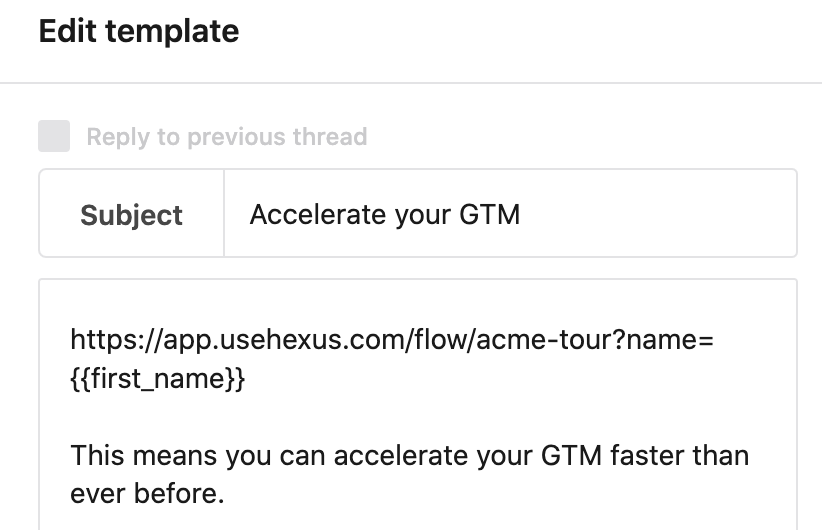 2. Personalized onboarding or product announcement emails through HubSpot or any email automation service, e.g:
 ## Customizing Multi-Flow Tours
In your sharing options for multi-flow tours, you can find options to personalize the name, email, primary flow, order and visibility of your inner flows. Flows in a multi-flow tour are indexed starting from 0. Here’s how you can tailor these tours:
## Customizing Multi-Flow Tours
In your sharing options for multi-flow tours, you can find options to personalize the name, email, primary flow, order and visibility of your inner flows. Flows in a multi-flow tour are indexed starting from 0. Here’s how you can tailor these tours:
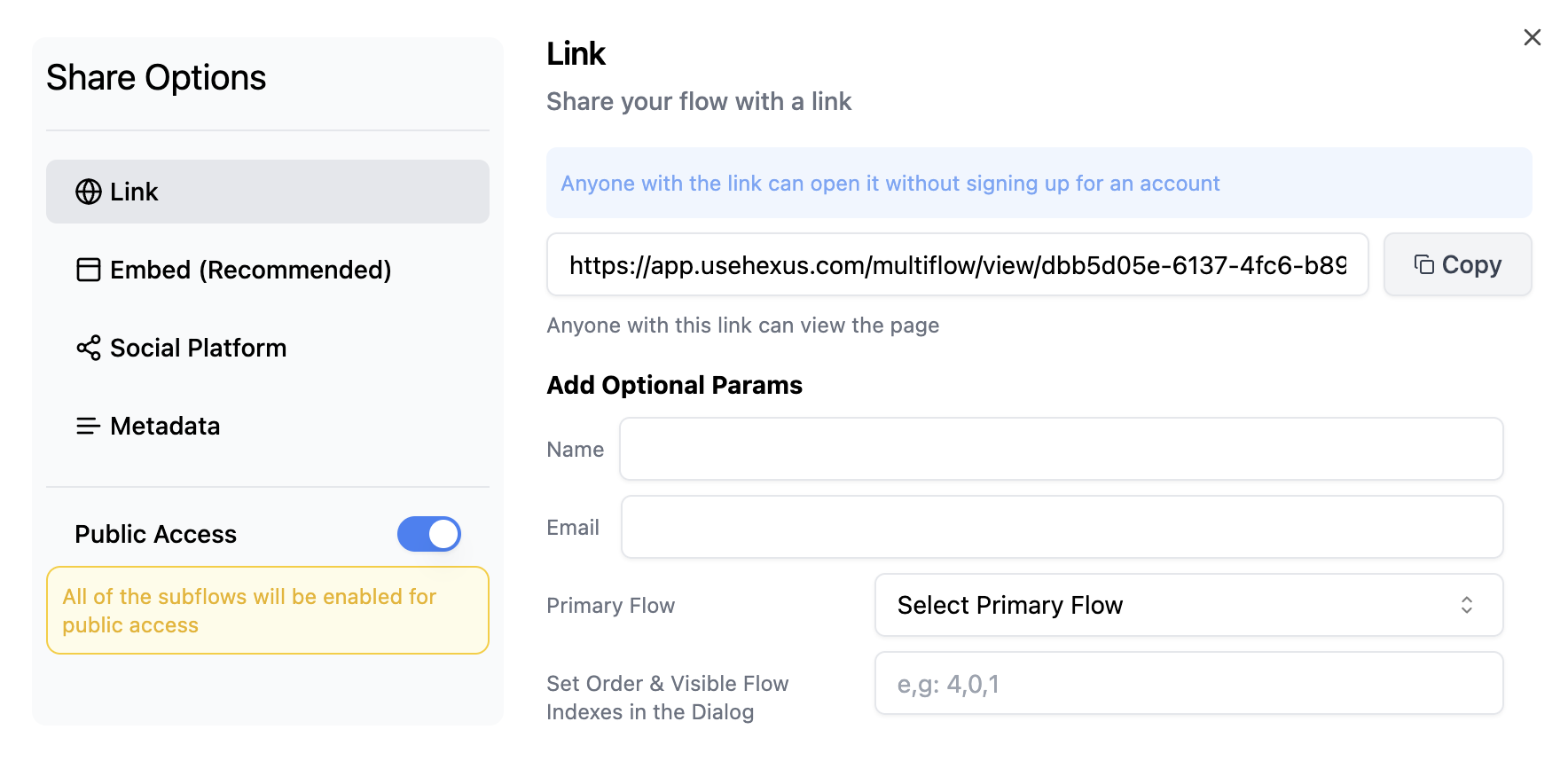 * **Primary Flow:** Set a default visible flow by configuring the primary flow settings. This is the flow that will be shown first when your multi-flow tour starts. You can also control the primary flow by adding the parameter `?pr=”index”` where “index” is the flow number. For example, to set the second flow as your primary flow, you can add \[`https://app.usehexus.com/multiflow/view/](https://app.usehexus.com/multiflow/build/dbb5d05e-6137-4fc6-b894-6b4a51125ac8)multiflow-id?pr=1`
* **Sequence and Visibility:** You can control the order and visibility of these flows by adjusting parameters in the URL:
* **Order:** Set the sequence of your flows using the `or` parameter. For example, to display flows in the order of third, first, and second, use \[`https://app.usehexus.com/multiflow/view/](https://app.usehexus.com/multiflow/build/dbb5d05e-6137-4fc6-b894-6b4a51125ac8)multiflow-id?or=2%2C0%2C1`.
* **Visibility:** To show only certain flows, omit others from the URL. For example, if you want to show only the third and second flows, use \[`https://app.usehexus.com/multiflow/view/](https://app.usehexus.com/multiflow/build/dbb5d05e-6137-4fc6-b894-6b4a51125ac8)multiflow-id?or=2%2C1`.
By customizing the order and visibility, you ensure that the most relevant content is prioritized according to your audience’s needs.
## Managing Demo Center Category Visibility and Sequence
The Demo Center allows you to organize and display your videos by categories. You can find these customization options in the Sharing settings for your Demo Center. Here’s how to manage category visibility and sequence:
* **Primary Flow:** Set a default visible flow by configuring the primary flow settings. This is the flow that will be shown first when your multi-flow tour starts. You can also control the primary flow by adding the parameter `?pr=”index”` where “index” is the flow number. For example, to set the second flow as your primary flow, you can add \[`https://app.usehexus.com/multiflow/view/](https://app.usehexus.com/multiflow/build/dbb5d05e-6137-4fc6-b894-6b4a51125ac8)multiflow-id?pr=1`
* **Sequence and Visibility:** You can control the order and visibility of these flows by adjusting parameters in the URL:
* **Order:** Set the sequence of your flows using the `or` parameter. For example, to display flows in the order of third, first, and second, use \[`https://app.usehexus.com/multiflow/view/](https://app.usehexus.com/multiflow/build/dbb5d05e-6137-4fc6-b894-6b4a51125ac8)multiflow-id?or=2%2C0%2C1`.
* **Visibility:** To show only certain flows, omit others from the URL. For example, if you want to show only the third and second flows, use \[`https://app.usehexus.com/multiflow/view/](https://app.usehexus.com/multiflow/build/dbb5d05e-6137-4fc6-b894-6b4a51125ac8)multiflow-id?or=2%2C1`.
By customizing the order and visibility, you ensure that the most relevant content is prioritized according to your audience’s needs.
## Managing Demo Center Category Visibility and Sequence
The Demo Center allows you to organize and display your videos by categories. You can find these customization options in the Sharing settings for your Demo Center. Here’s how to manage category visibility and sequence:
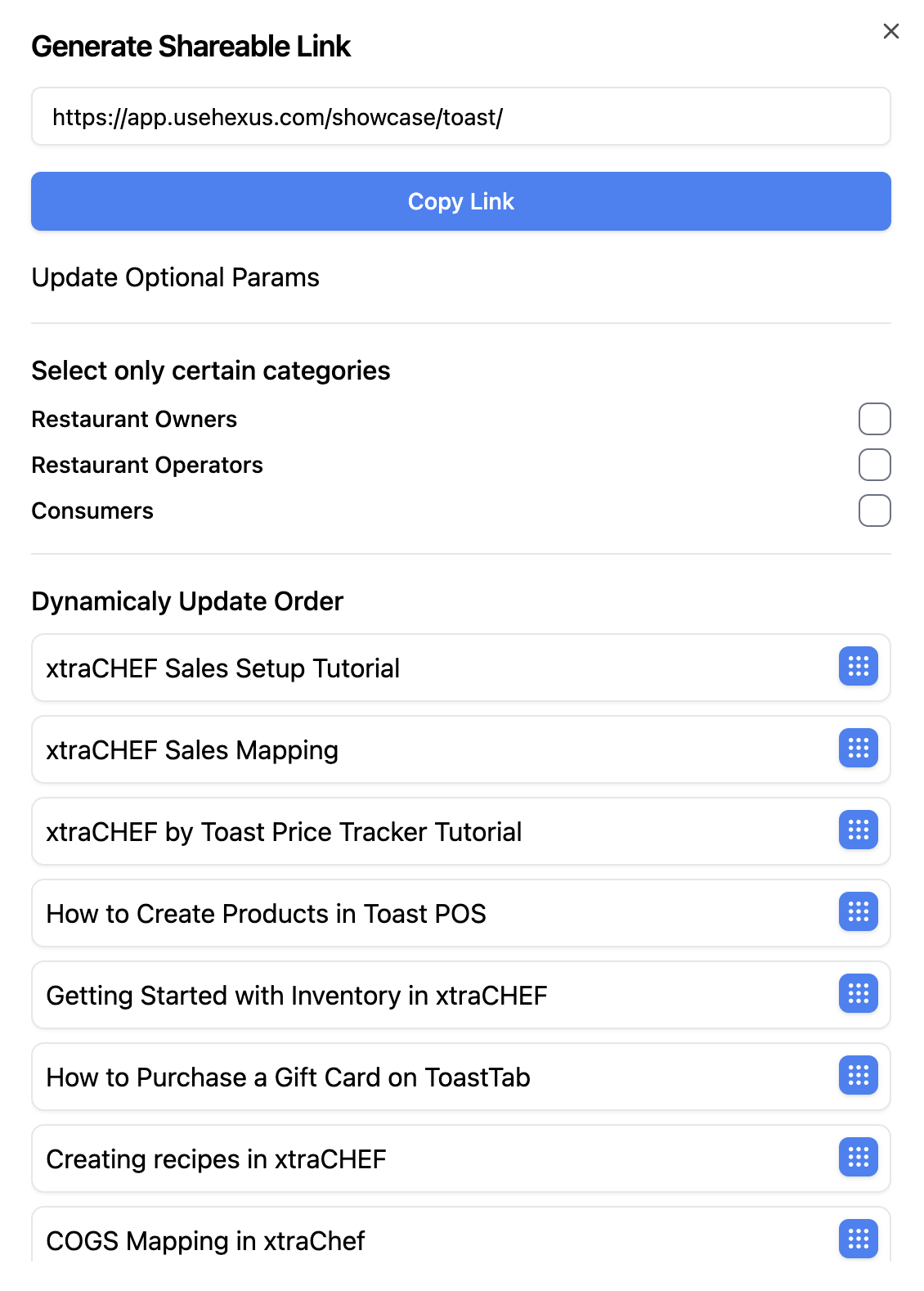 * **Categories Setup:** Assign categories to your videos (e.g., Restaurant Owners, Restaurant Operators, Consumers).
* **Category Filters:** Choose which categories to display. For example, to show videos in the Restaurant Owners and Consumers categories, use `https://app.usehexus.com/showcase/toast/?cat=Restaurant Owners,Consumers` in your share link.
* **Flow Order**: Choose which order to display or hide the flows in. Flows are indexed as 0, 1, 2,.. and so on. You can reorder the flows by dragging and positioning them or by using the `?order=”list”` parameter where “list” is the index number of the flows separated by %2C, for example `?order=0%2C3%2C2%2C1`
This functionality helps you present your content more effectively by grouping related videos and allowing viewers to find the information they need quickly.
* **Categories Setup:** Assign categories to your videos (e.g., Restaurant Owners, Restaurant Operators, Consumers).
* **Category Filters:** Choose which categories to display. For example, to show videos in the Restaurant Owners and Consumers categories, use `https://app.usehexus.com/showcase/toast/?cat=Restaurant Owners,Consumers` in your share link.
* **Flow Order**: Choose which order to display or hide the flows in. Flows are indexed as 0, 1, 2,.. and so on. You can reorder the flows by dragging and positioning them or by using the `?order=”list”` parameter where “list” is the index number of the flows separated by %2C, for example `?order=0%2C3%2C2%2C1`
This functionality helps you present your content more effectively by grouping related videos and allowing viewers to find the information they need quickly.