> ## Documentation Index
> Fetch the complete documentation index at: https://support.hexus.ai/llms.txt
> Use this file to discover all available pages before exploring further.
# Creating Localizations
> Strengthen customer relationships across regions with the localization capabilities available in Hexus.
To create localized URLs for your flows, you must be on our **Growth** plan. Translation for text and audio is available in 15 languages: **English, Arabic, Dutch, French, German, Hindi, Italian, Japanese, Korean, Mandarin, Portuguese, Russian, Spanish, Turkish, and Ukrainian**.
If you’d like to request a language not on this list, contact us at [**team@hexus.ai**](mailto:team@hexus.ai).
\*\*To change the language of any Hexus collateral : \*\*
1. Click the three dots in the top-right corner of your edit screen.
2. Select **AI and Language Settings**.
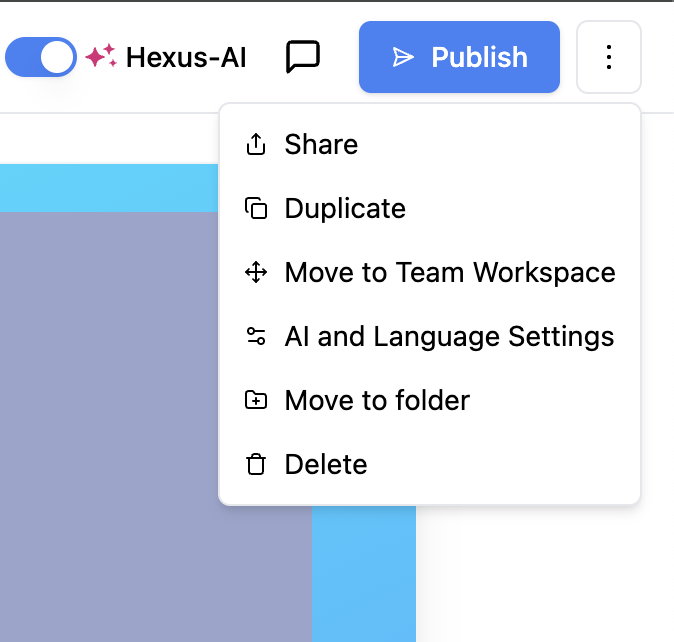 3. Once you click on **AI and language Settings** the following modal will open
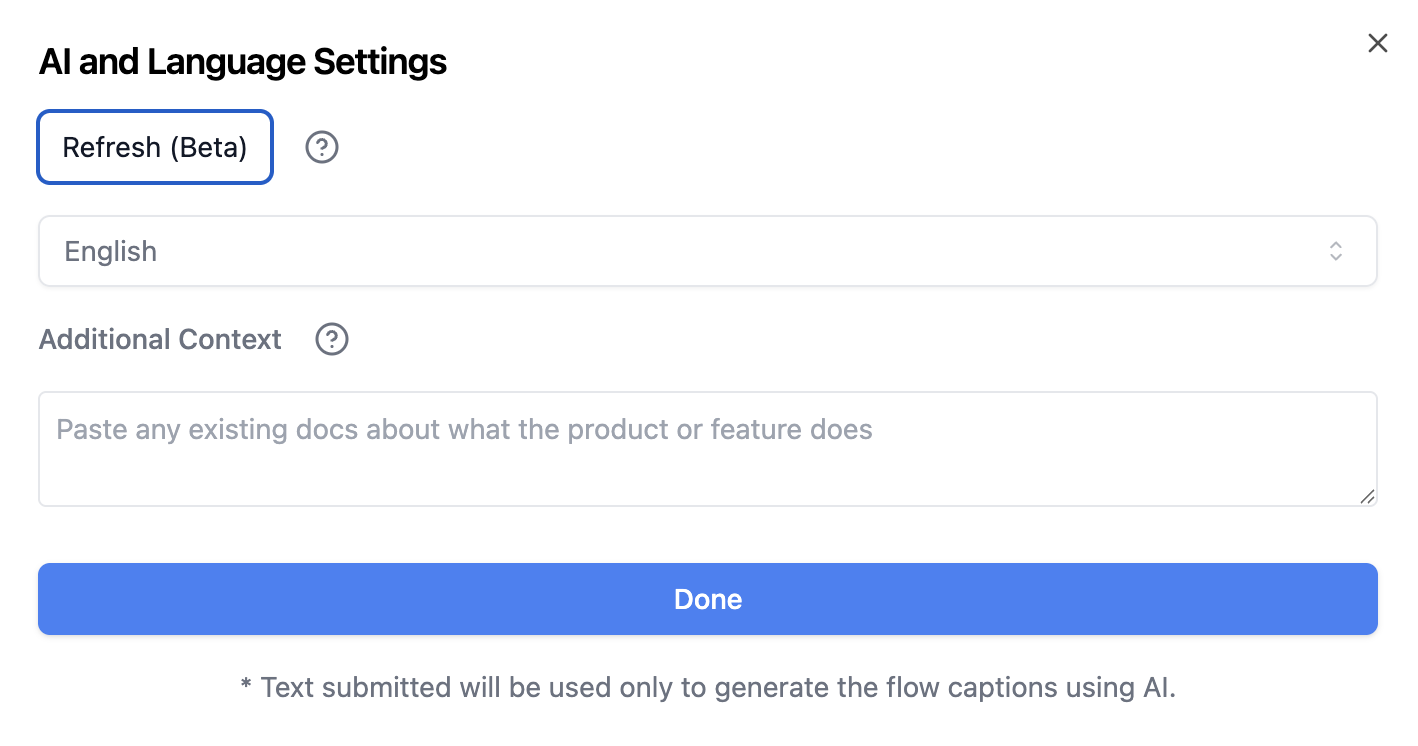 4. You can change your choose your language from the drop down and click on done
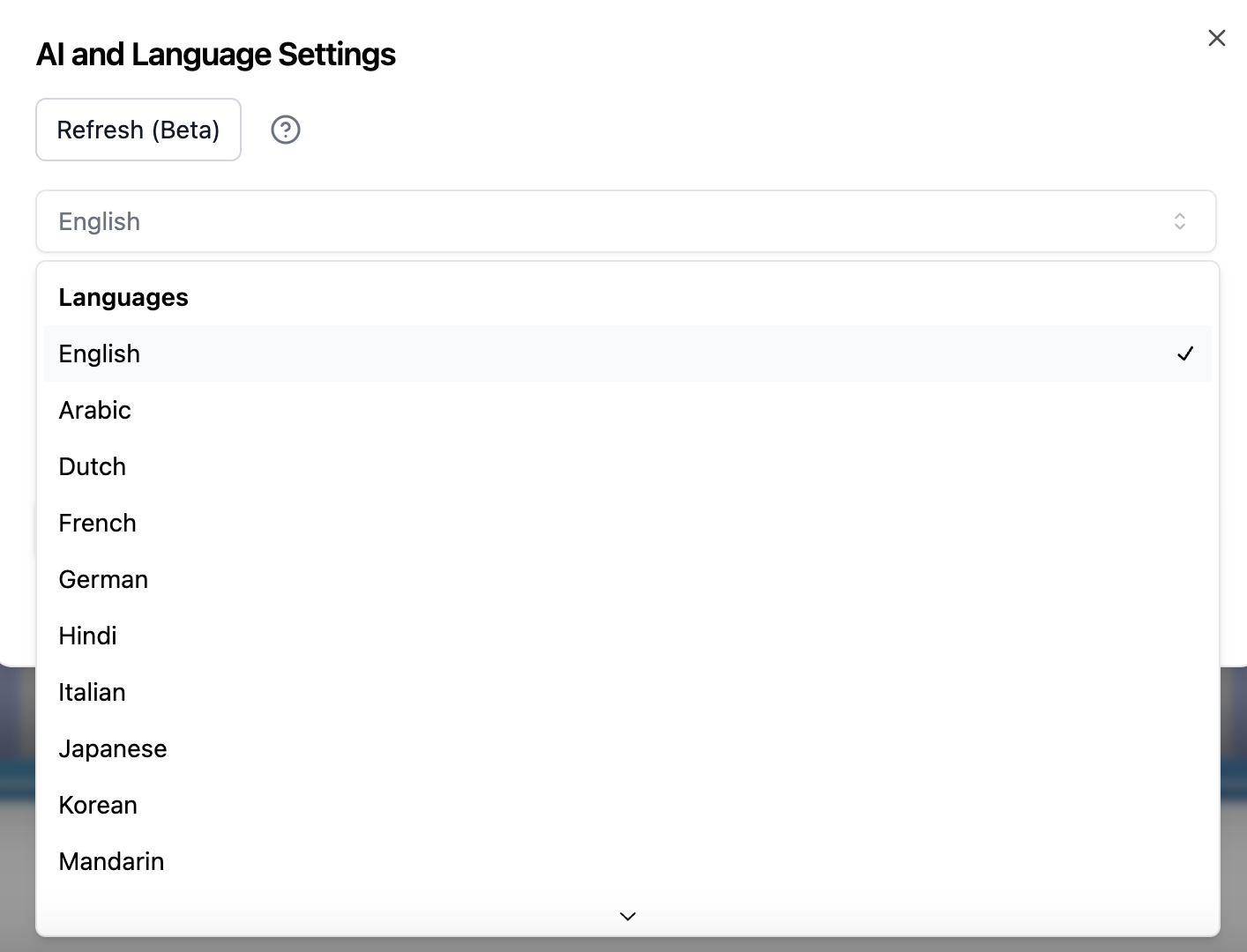 5. Your Hexus video is now translated to your desired language
## Localize content with unique urls
To create localized variants for your product tours, with language specific urls follow these steps:
5. Your Hexus video is now translated to your desired language
## Localize content with unique urls
To create localized variants for your product tours, with language specific urls follow these steps:
Contact us for translating video or audio steps or in your Hexus tours.
For users on a starter plan, while you cannot generate unique URLs with standard locale codes, you can still translate your flows into one of our 15 languages and share it as a unique link.
## Enable voiceover in different languages
1. Go to the **Edit** tab
2. Open the Media Toolbar
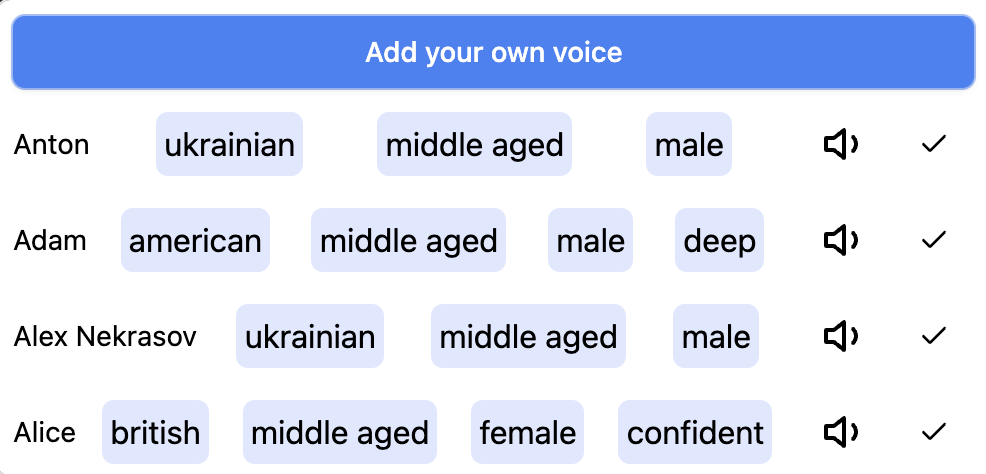 3. Enter the voiceover text in your target language.
4. Select any speaker to preview the language. All of the speakers support multilingual speech.
5. Click **Generate Speech** to create the voiceover.
6. Click **Play** to preview the generated voice.
3. Enter the voiceover text in your target language.
4. Select any speaker to preview the language. All of the speakers support multilingual speech.
5. Click **Generate Speech** to create the voiceover.
6. Click **Play** to preview the generated voice.